


Launching a website without a checklist is like baking a cake without checking the oven. Something comes out. You just won’t want to serve it.
A website design checklist is a list of everything your site needs before it goes live. It covers planning, design, content, speed, security, accessibility, search visibility, and testing. Skip a step, and visitors find the broken form, Google finds the blocked page, and you find the angry email.
Every good Website Design & Development Company runs a list like this on every project. This guide hands you the same one in plain language. You’ll learn what to check, why it matters, which tools to use, and how to fix common problems. You don’t need to code. You do need to know what to ask for. By the end, you’ll spot problems before your customers do.
KEY TAKEAWAYS
- A website design checklist protects your launch, your budget, and your search rankings.
- Plan goals, audience, ownership, and ongoing costs before you design anything.
- Build for phones first. Check color contrast, keyboard use, and Core Web Vitals.
- Test forms, checkout, tracking, and backup restores before launch day.
- Set up HTTPS, analytics, Search Console, and a sitemap, then confirm search engines can index your pages.
- Own your domain, hosting, CMS, and analytics accounts yourself.
- After launch, fix errors, update content, and review plugins and security every month.
How to Organize Your Website Design Checklist?
This website design checklist for clients and business owners splits the work into five groups. Finish one group before you start the next, because later steps depend on earlier choices.
- Website Strategy and Planning sets your goals, audience, budget, and structure.
- Website Design and Branding shapes layout, colors, navigation, and calls to action.
- Website Development and Content covers pages, copy, images, search basics, and forms.
- Website Testing and Performance checks speed, security, accessibility, and devices.
- Website Launch and Maintenance gets you live and keeps the site healthy.
Below, you’ll find 20 core items grouped into four parts, followed by launch and after-launch tasks.
Need Help Planning Your Business Website?
A successful website starts with the right strategy, professional design, and reliable development. American Design Agency LLC helps businesses build responsive, user-friendly, and SEO-friendly websites tailored to their goals.
Get Your Free Website Consultation20 Essential Website Design Checklist Items Before Launch
Part 1: Website Planning and Strategy
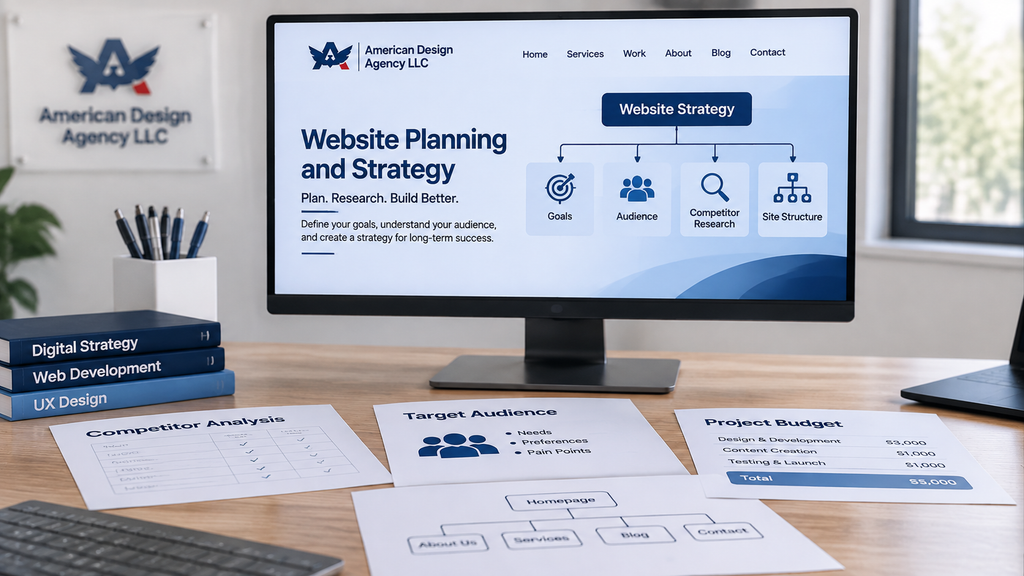
Good websites start on paper. This website planning checklist covers the decisions that cost the most to change later.
1. Define Your Website’s Purpose and Goals
Write one sentence that says what your website must do. Sell products, book appointments, and collect leads are all solid goals. “Look professional” isn’t, because you can’t measure it.
Then turn each goal into a number. For example, aim for 30 booked calls a month or a 2 percent checkout rate. Treat those as sample targets and set yours from your own data.
Next, set a budget. Count design, development, hosting, domain renewals, plugins, stock images, and website maintenance services. Many new owners budget only for the build, then get surprised by yearly fees. List every recurring cost and its renewal date in one sheet. A clear goal and a clear budget stop scope creep before it starts.
2. Identify Your Target Audience and Their Needs
Describe your top two or three visitor types. Note what they want, what worries them, and which device they use. A first time buyer on a phone needs different content than a purchasing manager on a laptop.
Gather real input. Interview five customers, read support emails, and review Google Analytics for device and location data. If you have an old site, check Search Console to see which searches bring people in. Then list the top five questions each visitor asks. Every answer needs a home on your site. If you can’t name your visitors’ questions, your content will guess, and guessing loses sales.
3. Research Competitors and Industry Standards
Pick five competitors and open their sites on your phone. Note their page types, pricing display, trust signals, and calls to action. Then search your main keyword in Google and study the top results. Those pages show what searchers expect.
Look for gaps, too. Maybe nobody shows prices or explains shipping clearly. That’s your opening. Don’t copy layouts. Copy standards, like visible contact info and secure checkout. Finally, check industry rules. Healthcare, finance, and legal sites often need specific disclaimers and privacy practices. Rules vary by location and change over time, so ask a qualified professional.
4. Plan Your Website Structure, Navigation, and User Journeys
Build a sitemap before you design anything. List every page and group pages by level. Keep important pages within three clicks of the homepage. A spreadsheet or a free diagram tool works fine.
Next, map user journeys. A journey is the path from first visit to goal. For example, a visitor lands on a service page, reads pricing, checks reviews, and fills out a quote form. Write down each step and mark where people might quit. Give each journey one conversion goal, such as a form submit, a call click, or a purchase.
Use plain labels. “Services” beats “Solutions.” Plan your URLs now too, since changing them later needs redirects.
Key Takeaways. Clear goals, real audience research, and a sitemap with mapped journeys prevent costly redesigns. Put your budget and renewal costs on paper before design starts.
Part 2: Website Design and User Experience

The website design process checklist turns your plan into screens people can use. Make these choices with real content and real devices, not placeholder text.
5. Choose a Domain Name and Reliable Hosting
Pick a domain that’s short, easy to spell, and easy to say out loud. Skip numbers and special characters. Choose .com if you can, since many visitors type it by default.
Now check ownership. New entrepreneurs often let a designer or agency register their domain and hosting. That can lock you out later. Confirm each point below in writing.
- You’re the registrant on the domain.
- You hold admin access to hosting.
- You control your CMS admin accounts.
- You own or can access Google Analytics and Search Console.
- You can reach website files, databases, and backups.
- You know every renewal date and recurring cost.
For hosting, compare uptime promises, backup options, server location, supported software versions, and support hours. Turn on HTTPS. If your host offers a CDN, use it. A CDN serves files from servers closer to your visitors, which cuts load time.
6. Create a Consistent Brand Identity
Define your logo files, color palette, font pairings, image style, and tone of voice. Save them in a one page style guide. Developers can then reuse the same hex colors, spacing, and button styles on every page.
Export your logo as an SVG for sharp display at any size, and keep a PNG backup. Check that it works on light and dark backgrounds and at small sizes, like a 32-pixel favicon. Inconsistent branding makes a site feel untrustworthy, and trust drives clicks.
7. Design a Clear and User-Friendly Layout
Put the most important thing first. Within five seconds, visitors should know who you are, what you offer, and what to do next. Use a clear headline, one short supporting line, and one main button above the fold.
Use a grid and plenty of white space. Keep line length near 50 to 75 characters, which is easier to read. Make size and weight show what matters most. Then run a five-second test. Show your homepage to five people for five seconds and ask what the site does. If they guess wrong, fix the headline before you touch the colors.
8. Make Your Website Mobile Friendly and Responsive
Design for phones first, then scale up. Many businesses hire Responsive Web Design Services for this step, because layouts must adapt cleanly to every screen size. Google also mainly uses the mobile version of your pages for indexing, so missing mobile content can hurt your rankings.
Add the viewport meta tag, or phones will shrink your page. Use flexible grids and CSS breakpoints around 480, 768, and 1024 pixels as starting points. Make tap targets at least 44 by 44 pixels so thumbs can hit them. Keep body text at 16 pixels or larger, and avoid sideways scrolling. Test in Chrome DevTools device mode first. Then check real phones, because emulators miss touch and scroll problems.
9. Choose Readable Fonts, Colors, and Visual Elements
Use one or two font families. Set body text at 16 pixels or larger with a line height near 1.5. Limit your palette to a main color, an accent, and neutrals.
Contrast matters most. WCAG 2.2 level AA asks for a 4.5 to 1 contrast ratio for normal text and 3 to 1 for large text. Check your color pairs with the free WebAIM Contrast Checker. Don’t use color alone to show meaning. A red error message needs an icon or words, too. Start your Website Accessibility Checklist here, since contrast fixes are cheap before launch and painful after.
10. Create an Intuitive Navigation Menu
Keep your main menu to five to seven items. Use plain labels in order of importance, and link your logo to the homepage. On mobile, use a menu button with a text label, not an unlabeled icon.
Then test keyboard use. Press Tab and move through the page without a mouse. Every link, button, and form field must be reachable in a logical order with a visible focus outline. Never remove that outline without a replacement. Add a skip to content link so keyboard users can jump past the menu. On large sites, add breadcrumbs and a search box.
Want a Website That Delivers a Better User Experience?
From mobile-friendly layouts to functional forms and optimized performance, every detail matters. American Design Agency LLC provides professional website design and development solutions that help businesses create seamless experiences for their customers.
Explore Our Website Design Services11. Design Clear Calls to Action (CTAs)
Give each page one main action. Use specific button text like “Get a Free Quote” instead of “Submit.” Make buttons stand out with strong contrast, and keep them within easy thumb reach on mobile. Repeat the main CTA after long sections, not after every paragraph.
Place proof near the action. Reviews, guarantees, and security badges calm doubts at the moment of choice. Keep forms short, since every extra field lowers completion. Then track each CTA as an event in analytics so you know which buttons work.
Key Takeaways. Confirm you own your domain and hosting. Build mobile first, meet contrast standards, and make every button reachable by keyboard.
Part 3: Website Content and Development
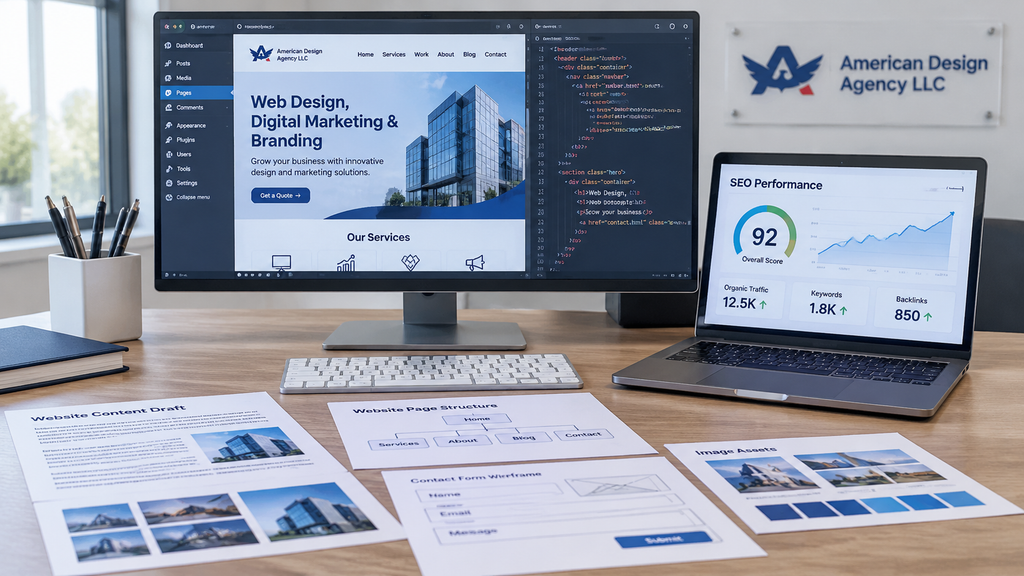
This web development checklist covers what you build and publish. Follow this website development process checklist in order, because content shapes design and code.
12. Create High Quality, Audience Focused Website Content
Write for your visitor’s question, not your company history. Lead each page with the answer. Use short paragraphs, clear headings, and plain words. Aim for about a 7th grade reading level for general audiences, and check it with a tool like Hemingway Editor.
Show real expertise. Add author names, credentials, update dates, and sources for claims. Don’t invent testimonials or statistics. Google’s quality guidance rewards content that shows experience, expertise, and trust. Finish all copy before development starts, because late content breaks layouts.
13. Add Relevant Images, Videos, and Graphics
Use original or properly licensed visuals, and keep a record of each license. Write alt text that describes what the image shows, ideally under 125 characters. For purely decorative images, use an empty alt attribute.
Control page weight. Resize images to the size they display, then compress them. Use modern formats like WebP or AVIF, with JPEG as a backup. Add width and height attributes so the layout doesn’t jump while images load. Lazy load images below the fold, but never your main hero image. For video, embed from a hosting platform and load the player on click, so it doesn’t slow the first view.
14. Build Essential Website Pages
Most sites need a Home page, About page, Services or Products pages, Contact page, FAQ, Privacy Policy, Terms, and a custom 404 page. Add Pricing, Blog, or Reviews if they match your goals. Only publish case studies you can prove.
Your privacy policy should say what data you collect and why. If you use analytics, forms, or ads, name them. Depending on your location and audience, laws like GDPR or CCPA may apply. Ask a lawyer to review the policy, since requirements vary. Add a cookie consent banner if the rules for your visitors call for one, and link your policies in the footer of every page.
15. Optimize Your Website for Search Engines
Give every page one H1, a unique title tag under about 60 characters, and a unique meta description under about 160 characters. Treat those lengths as guides, since Google may rewrite what it shows. Use short, readable URLs.
Add a self-referencing canonical tag to each page. It tells search engines which URL is the main version when duplicates exist, like http and https or www and non-www versions. Set 301 redirects from old URLs to new ones. Build a custom 404 page with links to key sections.
Add structured data in JSON-LD that fits your business, such as Organization, LocalBusiness, or Product. Validate it with Google’s Rich Results Test. Finally, confirm indexing. The URL Inspection tool in Search Console shows whether Google can index a page.
16. Add Contact Forms and Required Tools
Build forms people can finish. Label every field, mark required ones, and use the right input types so phones show the right keyboard. Validate in the browser for quick feedback and on the server for safety, since browser checks can be bypassed.
Stop spam without annoying real people. Use a honeypot field, rate limiting, or a CAPTCHA tool such as reCAPTCHA or Cloudflare Turnstile. Send form emails through a proper email service, and set SPF, DKIM, and DMARC records so messages reach inboxes. Add a consent checkbox where rules require it. Then connect your CRM, email platform, and analytics. A good website features checklist lists every form, where it sends data, and who receives each lead.
Key Takeaways. Finish content first, compress images, set up canonical tags and redirects, and protect forms with server-side validation and spam controls.
Part 4: Website Testing and Quality Assurance
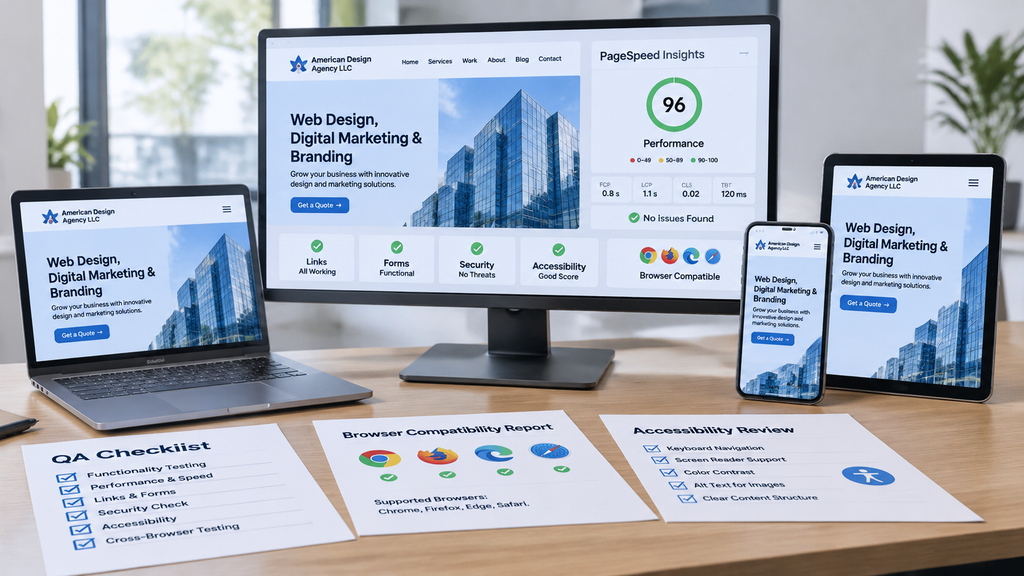
Testing is where a good plan meets real browsers. Give it real time, and write down every result.
17. Test Website Functionality Across Different Devices
Test on real hardware. Use at least one recent iPhone, one Android phone, a tablet, and a laptop. Add BrowserStack or a similar service for devices you don’t own. Walk through every user journey from your plan, from first click to goal.
Test conversions end to end. Submit every form and confirm the email arrives and the CRM records the lead. Run a test purchase in your payment provider’s test mode and check taxes, shipping, receipts, and error messages. Then verify tracking with Google Tag Assistant or GA4 DebugView, and confirm each event fires once, not twice. Log results in a shared sheet.
18. Check Page Loading Speed and Core Web Vitals
Open PageSpeed Insights and test your key pages on mobile. It shows lab data from Lighthouse and, when available, field data from real Chrome users. Field data matters more because it reflects real visitors. New sites may not have it yet.
Core Web Vitals has three metrics. Largest Contentful Paint (LCP) measures how fast the main content loads, and the good target is 2.5 seconds or less. Interaction to Next Paint (INP) measures responsiveness, with a good target of 200 milliseconds or less. Cumulative Layout Shift (CLS) measures visual jumping, with a good target of 0.1 or less. Google judges these at the 75th percentile of visits. Thresholds can change, so confirm them on web.dev.
If LCP is slow, compress and preload the hero image and improve server response time. If INP is high, cut JavaScript and remove third-party scripts you don’t need. If CLS is high, set image sizes and reserve space for banners and ads.
19. Test Links, Forms, Buttons, and Website Security
Crawl your site with Screaming Frog or a similar tool. It finds broken links, redirect chains, missing titles, and error pages. Fix every 404 and 5xx error you find.
Then check security. Confirm HTTPS loads on every page with no mixed content warnings, and test your setup with SSL Labs. Add security headers such as HSTS, X-Content-Type-Options, and Content Security Policy. A scanner like securityheaders.com shows what’s missing. Use strong admin passwords with two-factor login, and limit login attempts.
Finally, test backup restoration. A backup you’ve never restored is only a hope. Restore your latest backup to a staging site and confirm pages, images, forms, and the database all work. Note how long it takes. That’s your real recovery time.
20. Review Website Accessibility and Browser Compatibility
Run automated checks with WAVE, axe DevTools, or Lighthouse. They catch many common problems, but not all. Then test by hand. Use only a keyboard. Zoom to 200 percent. Try a screen reader, such as NVDA on Windows or VoiceOver on Mac and iPhone. Check headings, form labels, alt text, link text, and video captions. Link text like “click here” fails when read out of context.
Target WCAG 2.2 level AA. Accessibility rules and lawsuits vary by region, so ask a qualified professional about your legal duties.
Test the latest Chrome, Safari, Firefox, and Edge. Safari often behaves differently, so don’t skip it.
Key Takeaways. Test real devices, real purchases, and real backup restores. Measure Core Web Vitals, check security headers, and review accessibility by hand.
Website Design Requirements for Different Business Types
Every site needs the 20 items above. Still, priorities shift with your business model. Use this section to decide where to spend extra time.
Small Business Website Design Requirements
Local trust comes first. Show your phone number, address, hours, and service area on every page. Add a click to call button for phones, an embedded map, and a link to your Google Business Profile. Use LocalBusiness structured data and collect real reviews. Keep the site fast and simple, since you’ll likely update it yourself.
Startup Website Design Requirements
Clarity beats polish. Your homepage must explain the problem you solve in one headline. Pick a CMS that lets you change copy fast, and set up analytics on day one. Add a demo, waitlist, or trial path, and a clear pricing or contact page. Don’t overbuild. Plan for A/B tests, because your first message will probably need tuning.
eCommerce Website Design Requirements
Checkout decides everything. Offer guest checkout, clear shipping and return policies, and visible totals before the last step. Let a trusted payment provider handle card data, which reduces your PCI DSS burden. Add Product structured data, strong product photos, and stock status. Run test orders for every payment method, and track the whole funnel from product view to purchase.
Corporate Website Design Requirements
Governance matters. Many teams edit one site, so set user roles, approval steps, and brand rules. Plan for accessibility compliance, a formal security review, and multiple languages if you serve several markets. Add clear pages for leadership, careers, press, and investor or partner needs. Choose hosting that scales and supports single sign on.
Service-Based Business Website Design Requirements
Leads are the goal. Build one page per core service, and one page per city if you serve several. Show your process, pricing guidance, proof of results you can verify, and an FAQ. Offer a short quote form and an online booking option. Use call tracking so you know which pages produce calls.
Key Takeaways. Small businesses need local trust, startups need clarity, stores need a flawless checkout, corporations need governance, and service firms need lead capture.
Common Website Design Mistakes to Avoid Before Launch
These ten problems show up again and again. Each one is easy to prevent when you catch it early. If you’re updating an old site, treat this list as a Website Redesign Checklist too, and crawl the old site first so you can save every URL.
- Designing for desktop and ignoring mobile users. Most traffic often comes from phones, so build and test mobile screens first.
- Using attractive layouts that hide important information. If visitors can’t find your price, phone number, or main button in seconds, the design failed.
- Adding too many plugins and third-party scripts. Each one adds weight, security risk, and update work. Remove what you don’t use.
- Publishing pages with placeholder content. Search for “lorem ipsum” and “coming soon” before launch.
- Ignoring accessibility during development. Fixing contrast, labels, and keyboard use late costs far more than building them in.
- Launching without testing forms and conversions. A form that sends no email is a silent lead leak.
- Blocking important pages from search engines. Staging settings like noindex tags or a site wide block in robots.txt often survive launch by accident.
- Using uncompressed images. A single huge hero photo can wreck your LCP score.
- Forgetting redirects when changing URLs. Old links and rankings break without 301 redirects.
- Skipping security updates and backups. Outdated software is a common way sites get hacked, and an untested backup won’t save you.
Complete Website Design Checklist Table
Use this table as your master list. Critical items can stop a launch, so fix them first.
| Task | What to check | Why it matters | Priority |
| Goals and budget | Written goals, target numbers, a sheet of yearly costs | Keeps scope and spending under control | High |
| Ownership and access | Domain, hosting, CMS, analytics, and backups are in your name | Prevents lockouts and surprise fees | Critical |
| Sitemap and user journeys | Full page list, three click depth, one journey per goal | Guides design and conversions | High |
| Mobile layout | Real phones, 44 pixel tap targets, no sideways scroll | Most visitors browse on phones | Critical |
| Contrast and keyboard use | 4.5 to 1 text contrast, logical Tab order, visible focus | Helps all users and meets WCAG 2.2 AA | High |
| Content | Final copy, alt text, sources, no placeholders | Builds clarity and trust | High |
| Technical SEO | Titles, canonicals, XML sitemap, noindex removed | Lets search engines find and index pages | Critical |
| Redirects and 404 pages | 301 for every changed URL, custom 404 | Protects traffic and rankings | High |
| Forms and spam protection | Server validation, test emails, spam controls | Protects leads | Critical |
| Privacy and consent | Privacy policy, cookie banner where required | Builds trust and addresses legal duties | High |
| Conversion tracking | Events fire once, key events set in GA4 | Shows what produces results | High |
| Core Web Vitals | LCP 2.5 seconds, INP 200 milliseconds, CLS 0.1 | Improves speed and experience | High |
| HTTPS and security headers | Valid certificate, no mixed content, HSTS | Protects visitors and data | Critical |
| Backup restoration | A completed restore test with timing noted | Confirms you can recover | Critical |
| Plugins and permissions | Remove unused plugins, limit admin users | Cuts security and speed risks | Medium |
| Browser compatibility | Chrome, Safari, Firefox, and Edge | Prevents broken layouts | Medium |
Key Takeaways. Verify DNS and SSL, connect analytics, remove staging blocks, and back up before you go live.
What to Do Before Making Your Website Live
- Verify domain ownership and DNS records. Point your A and CNAME records to your host. Lower the TTL a day before the switch so changes spread faster. Make sure the www and non-www versions redirect to one main version. Keep your email records (MX, SPF, DKIM) intact, or email may stop working.
- Install and verify your SSL certificate. Check for the padlock on every page, with no mixed content warnings. Most hosts renew certificates automatically. Still, know how to renew an SSL Certificate if yours doesn’t, and set a calendar reminder 30 days before expiry. Let’s Encrypt certificates last 90 days and usually renew on their own.
- Set up Google Analytics and Google Search Console. Install GA4, mark key events like form submits and purchases, verify your Search Console property, and submit your sitemap.
- Check your robots.txt file and XML sitemap. Robots.txt controls crawling, and a noindex tag controls indexing. Remove any staging blocks. Your sitemap should list only live pages that return a 200 status.
- Create a website backup. Take a full backup of files and database right before launch, and store a copy off the server.
- Remove test content and placeholder text. Delete dummy pages, test orders, test users, sample images, and fake emails.
- Complete a final website review. Ask someone who didn’t build the site to read every page, click every button, and submit every form.
The Bottom Line
A website launch goes better when you follow a plan. Start with clear goals, own your accounts, and design for phones first. Then test your forms, speed, security, and backups before anyone sees the site.
After launch, keep fixing, updating, and checking. These habits save money and protect your reputation. Each item you check today is one less emergency tomorrow.
You don’t have to handle every step alone. Professional Website Design Services can turn this checklist into a finished, fast, and secure site. American Design Agency LLC builds and launches websites for businesses of every size. Reach out, share your goals, and get your next website live with confidence.
Ready to Build a Website That Grows Your Business?
Your website should do more than look good. It should build trust, attract the right audience, and turn visitors into customers. American Design Agency LLC can help bring your vision to life with professional website design and development tailored to your business needs.
Start Your Website Project TodayFrequently Asked Questions
A good website checklist covers planning, design, content, speed, security, accessibility, search basics, and testing.
It uses clear, checkable tasks, names who owns each one, and sets priorities. You should be able to tick every item off and prove it’s done.
Every website needs a clear homepage, About page, services or products, and a Contact page.
Add a privacy policy, a custom 404 page, and HTTPS. Make sure visitors can find your phone number or form quickly, on any device.
Design for your visitor, not for yourself. Before you pick colors or fonts, decide who’s visiting, what they want, and what you want them to do next.
Every layout choice should help them reach that goal faster and with less effort.
Start with your goals, then list tasks under planning, design, content, testing, and launch. Add what to check, who owns it, and a priority level for each task.
Test the list on a small project, then refine it.
The biggest mistakes are ignoring mobile users, hiding key information, and stuffing pages with plugins and scripts.
Others include slow images, weak accessibility, missing redirects, and untested forms. Skipping backups and security updates also causes expensive problems later.
Test forms, links, and checkout on real devices. Confirm HTTPS works, analytics tracks events, and search engines can index your pages.
Remove placeholder text, point your DNS correctly, and take a full backup. Then ask someone new to review everything.
Many people visit websites on their phones, and they leave quickly when pages are hard to use.
Google also mainly uses the mobile version of your pages for indexing. A responsive design helps you keep visitors and protect your rankings.
